
Every device on your home network — computers, phones, smart speakers, security cameras, game consoles — connects to the internet through one piece of hardware most people never think about after the day it was installed: the router. Home router security gets far less attention than password managers or antivirus software, despite sitting at a more foundational layer than either. If the router itself is compromised, an attacker doesn’t need to break into any individual device — they can potentially observe, redirect, or intercept traffic from everything connected to it, which is precisely what makes it such a high-value target relative to how little attention it typically receives.
The uncomfortable part of home router security is that most of the risk isn’t introduced by anything the user does wrong later. It’s baked into the default configuration the router ships with, sitting there unnoticed unless someone specifically goes looking for it. This article walks through exactly which default settings create real risk, why manufacturers ship them this way in the first place, and what to actually change.
Why Default Settings Are the Real Problem
Router manufacturers optimize the out-of-box experience for the widest possible audience: something that works immediately, with minimal setup friction, understandable by someone with no networking background. Home router security is rarely the top priority in that design goal — ease of use is.
This creates a predictable pattern: settings that make initial setup easier also tend to make the device easier to compromise, because the same simplicity that helps a first-time user also helps an attacker who already knows exactly what to look for. Most of what follows in this article isn’t a sophisticated attack — it’s a list of defaults that are public knowledge, documented in manufacturer manuals, and scanned for automatically by tools built specifically to find routers still running them, often within minutes of a new device being connected to the internet for the first time.
Default Admin Credentials
This is the single most consequential home router security issue, and it’s almost always the first thing checked by automated scanning tools that hunt for vulnerable routers across the internet.
Most routers ship with a default administrator username and password — often something as simple as “admin/admin” or “admin/password” — printed directly on a sticker on the device itself. These credentials are not secret. They’re published in manufacturer documentation, indexed in searchable public databases specifically compiled for this purpose, and assumed by default by automated attack tools that scan entire ranges of internet addresses looking for routers still using them, which is precisely why this single detail undermines home router security more than almost any other factor on this list.
If an attacker gains access to your router’s admin panel, they gain control over the single device every other piece of your network traffic passes through — including the ability to redirect traffic, monitor unencrypted connections, or push malicious firmware. Changing the default admin password is not optional home router security hygiene; it’s the first and most important step, full stop, and it takes less time than reading this paragraph.

Remote Administration Left Enabled
Many routers ship with the ability to access the admin panel from outside your home network — a feature intended for advanced users who want to manage settings while away, but one that dramatically expands what an attacker anywhere in the world can attempt, rather than requiring them to already be on your local network.
Unless you specifically know you need this feature and have a strong, unique password protecting it, home router security best practice is to disable remote administration entirely. For the vast majority of home users, there’s no legitimate reason it needs to remain on, and its presence turns a local-only attack surface into a globally reachable one — one of the fastest ways a well-configured network still ends up failing on home router security fundamentals.
Outdated Firmware
Router firmware is software, and like any software, it accumulates known vulnerabilities over time that manufacturers patch through updates. Unlike a phone or laptop, though, routers rarely prompt users to update, and many people never log into the admin panel again after initial setup — meaning a router can run known-vulnerable firmware for years without the owner ever realizing it.
This matters more than it might seem, because publicly disclosed router vulnerabilities are actively exploited at scale. Large botnets — networks of compromised devices used for attacks — have historically been built specifically by scanning for routers running firmware with known, unpatched vulnerabilities. Checking for and installing firmware updates periodically is a core part of home router security that most manufacturers make easy to ignore by not automating it well, leaving this responsibility almost entirely on the user despite how little visibility most users have into whether it’s even needed.
WPS: Convenient, but a Known Weak Point
Wi-Fi Protected Setup (WPS) allows a device to join a network by pressing a button on the router or entering a short PIN, instead of typing the full Wi-Fi password. It’s convenient, but the PIN-based version of WPS has a well-documented vulnerability: the PIN is only 8 digits, and due to a design flaw in how it’s validated, it can often be brute-forced in a matter of hours by an attacker within range of the network.
The button-press version of WPS is meaningfully safer, since it requires physical access to the router at the exact moment of connection. But many routers enable the PIN method by default, alongside or instead of the button method, without making the distinction obvious to the user. Checking your router’s WPS settings and disabling the PIN method specifically — even if you keep the button method — closes a gap that’s been understood and exploited for over a decade.
Weak Wi-Fi Encryption Standards
The encryption protocol securing your Wi-Fi connection itself matters as much as the password protecting it. Older standards — WEP, and to a lesser extent WPA — have known cryptographic weaknesses that make them crackable with freely available tools, sometimes in minutes.
WEP should be considered completely broken and should never be used if any alternative is available. WPA2 has been the reasonable baseline standard for years and remains acceptable, particularly with a strong password. WPA3 is the current standard and includes meaningful improvements, including better protection against offline password-guessing attacks. If your router supports WPA3 and it isn’t already enabled, switching to it is one of the more impactful single changes available for home router security, alongside changing the admin password — arguably the two highest-leverage changes covered in this entire article.
If your router only supports WEP or the original WPA, and doesn’t offer a firmware update path to WPA2 or WPA3, this is a strong signal the hardware itself has aged out of what’s reasonable to keep on an internet-connected network, regardless of what other settings are configured correctly.
UPnP: Convenience That Opens Ports Automatically
Universal Plug and Play (UPnP) allows devices and applications on your network to automatically open ports on your router without asking permission each time — useful for things like game consoles or certain smart home devices that need to accept incoming connections.
The home router security tradeoff is that UPnP requests are trusted automatically, by design, which means malicious software already running on any device on your network can potentially use UPnP to open additional ports without your knowledge or explicit approval. Several real-world vulnerabilities have specifically exploited flawed UPnP implementations to gain broader network access than intended. Unless you have a specific device that genuinely requires it, disabling UPnP and manually configuring port forwarding only for what you actually need is the more conservative choice.
Default Network Name (SSID) Broadcasting Device Information
Many routers ship with a default network name that reveals the manufacturer and sometimes the exact model — information that can help an attacker quickly identify which known vulnerabilities might apply to your specific hardware before attempting anything else.
This is a lower-severity issue than weak encryption or default credentials, but it’s a free, easy change: renaming your network to something that doesn’t identify the router’s make or model removes one small piece of reconnaissance information an attacker would otherwise get for free, without needing to guess or scan for it — a minor detail, but one more small win for overall home router security at essentially no cost.
No Network Segmentation for Guests and IoT Devices
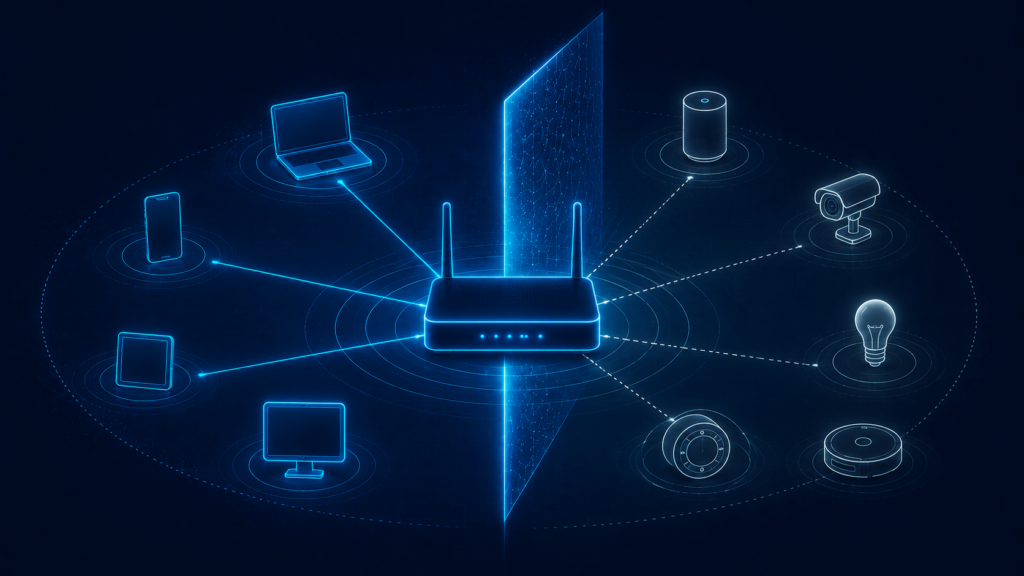
Smart home devices — cameras, thermostats, smart plugs, voice assistants — have a documented history of weaker security practices than traditional computers, partly because manufacturers prioritize cost and time-to-market over the same level of security engineering. When these devices share the same network as your computers and phones, a vulnerability in a single inexpensive smart device can potentially become a stepping stone to the rest of your network.
Most modern routers support creating a separate guest network or a dedicated IoT network, which keeps these lower-trust devices isolated from your primary devices even if one of them is compromised. This is a meaningful home router security improvement that costs nothing and typically takes only a few minutes to configure, yet remains unused by most households simply because it isn’t part of the default setup flow — another example of the gap between what’s technically available and what actually gets configured.
DNS Hijacking: A Quieter, More Dangerous Compromise
One of the more consequential router-level attacks doesn’t involve stealing a password at all — it involves quietly changing the router’s DNS settings. DNS (Domain Name System) is what translates a website address you type into the actual server your device connects to. If an attacker gains access to your router’s admin panel and changes its DNS settings to point at a malicious server, every device on your network can be silently redirected to fake versions of real websites, without any obvious sign that anything has changed.
This is a particularly effective attack precisely because it’s invisible from the device side. Your browser still shows the address you typed, HTTPS may still show a padlock if the fake site itself has a valid certificate for a lookalike domain, and nothing about the experience necessarily looks wrong at a glance. Home router security specifically needs to account for this, because it’s one of the few attack categories that isn’t solved by anything you do on the device itself — the compromise happens at the router, upstream of every device connected to it, which is exactly why home router security has to be treated as a distinct concern from device-level protections like antivirus software or browser settings.
Checking your router’s DNS settings periodically, and confirming they either point to your ISP’s default servers or to a DNS provider you deliberately chose yourself (such as a well-known public DNS service), is a useful habit specifically because unauthorized changes here are both high-impact and easy to overlook. This check becomes especially important after any period where you suspect the admin panel might have been accessed without your knowledge.
Mesh Networks and Multiple Access Points
Larger homes increasingly use mesh Wi-Fi systems — multiple coordinated access points spread through the house, rather than a single router. Home router security considerations largely carry over to mesh systems, but with an added wrinkle: each node in a mesh network is itself a device with its own firmware, and a vulnerability in one node’s software can potentially affect the security of the network as a whole, not just the coverage in that node’s physical location — meaning home router security in a mesh setup is only as strong as its weakest individual node.
The practical implication is that firmware updates matter just as much, if not more, for mesh systems, since there are more individual devices that each need to stay current. Most consumer mesh systems handle this through a centralized app that updates all nodes together, which is generally more convenient than manually updating each device separately — but it also means trusting that centralized update mechanism itself, making the manufacturer’s own security track record and update responsiveness a more significant factor in the initial purchase decision than it might be for a single traditional router.
A Practical Home Router Security Checklist
Bringing this home router security guidance together into an actionable sequence that most people can complete in under thirty minutes total:
Change the default admin username and password to something strong and unique — this is the single highest-priority item.
Disable remote administration unless you specifically need it and have secured it with a strong password.
Check for and install firmware updates, and check periodically going forward rather than treating it as a one-time task.
Disable WPS’s PIN method, keeping the button method only if you use it.
Switch to WPA3 if your router supports it, or WPA2 at minimum — never WEP or unsecured WPA.
Disable UPnP unless a specific device genuinely requires it, and manually configure port forwarding instead.
Rename your network to something that doesn’t reveal the router’s manufacturer or model.
Set up a separate guest or IoT network for smart home devices and visitor access.
What About the Router Your Internet Provider Gave You?
Many households use a router provided directly by their internet service provider rather than one purchased separately. This doesn’t exempt it from any of the home router security considerations above — ISP-provided routers ship with the same categories of default settings, and in some documented cases have had their own manufacturer-specific vulnerabilities that apply just as much to rented hardware as to anything purchased independently.
The main practical difference is that some ISP-provided routers restrict certain settings or require going through the provider’s app or web portal rather than the router’s own admin panel. It’s still worth logging in and checking what’s accessible — most ISP routers still allow changing the admin password, updating firmware, and adjusting Wi-Fi encryption settings, even if some advanced options are locked down.
Frequently Asked Questions
How often should I update my router’s firmware?
Checking every few months is a reasonable baseline for most home users, though enabling automatic updates — if your router supports them — removes the need to remember entirely. Given how rarely most people log into their router’s admin panel, automatic updates meaningfully close a real-world gap in home router security.
Is it safe to use the Wi-Fi password printed on my router?
The default password printed on the router is typically randomly generated and reasonably strong on its own, which is better than many self-chosen passwords. It’s still worth confirming the router uses WPA2 or WPA3 encryption, since a strong password paired with a weak encryption standard still leaves the connection vulnerable.
Does a guest network really make a difference if all my devices are trusted?
Segmentation matters less if you’re certain every device on your network is fully trustworthy and fully updated, but “trusted” and “secure” aren’t the same thing — a legitimate smart device with an unpatched vulnerability can still become an entry point regardless of how much you trust its manufacturer’s intentions. Segmentation limits the blast radius even when trust is reasonable.
Can someone hack my router without being physically near my house?
Yes, if remote administration is enabled and not properly secured, or if the router has a known vulnerability that can be exploited over the internet rather than requiring local network access. This is precisely why disabling unnecessary remote administration is a priority item in home router security, not just a nice-to-have.
How do I know if my router has already been compromised?
Warning signs can include unexpectedly slow performance, unfamiliar devices showing up in the router’s connected-devices list, DNS settings that have changed without your input, or the admin password no longer working with credentials you know you set. If you suspect compromise, a factory reset followed by reconfiguring all settings from scratch — including a new admin password — is the most reliable remediation.
Is buying a more expensive router automatically more secure?
Not automatically, though higher-end routers more often support current standards like WPA3, receive more consistent firmware update support, and sometimes include more granular security controls. Price is a weak proxy for security on its own — checking the specific features and update history of a given model matters more than the price tag.
Should I be worried about my router’s DNS settings if I’ve never changed them myself?
Not inherently, since unchanged default settings pointing to your ISP’s servers are normal and expected. The concern is specifically about unexplained changes — if you check your router’s DNS configuration and see unfamiliar server addresses you didn’t set yourself, that’s a stronger signal worth investigating than the mere presence of DNS settings existing, which every router has by default.
Final Thoughts
Home router security rarely fails because of a sophisticated attack — it fails because a device shipped with settings optimized for convenience rather than protection, and no one ever went back to change them. Default admin credentials, remote administration left enabled, outdated firmware, and weak encryption standards aren’t obscure technical vulnerabilities; they’re publicly documented defaults that automated tools are specifically built to find, at scale, across millions of unmodified devices.
None of the fixes covered in this article require advanced technical skill. Most take a few minutes inside a settings page every router already has. What they require is simply going and looking — logging into the admin panel at least once beyond the initial setup, and treating the router with the same baseline scrutiny already applied to passwords and accounts elsewhere. Since every other device on the network depends on it, that scrutiny arguably matters more here than almost anywhere else, precisely because a single compromised router can quietly undermine the security of every device connected to it, regardless of how carefully each of those individual devices was otherwise configured.
For further reading on general network security practices, the Cybersecurity and Infrastructure Security Agency (CISA) publishes ongoing guidance on securing home and small business networks, and the FCC’s consumer guide to online safety covers related consumer-facing protections worth being aware of.